The Ultimate Computer Maintenance Checklist for Edmonton Residents
A well-maintained computer works faster, lasts longer, and experiences fewer unexpected problems. Whether you use your computer for work, school, gaming, or personal tasks, regular maintenance helps protect your investment and improves performance.
Many computer issues develop over time because of neglected updates, excessive dust, outdated software, or failing hardware. Fortunately, most of these problems can be prevented with a simple maintenance routine.
In this guide, you’ll learn the ultimate computer maintenance checklist for Edmonton residents. By following these practical tips, you can reduce repairs, improve security, and extend the life of your desktop or laptop.
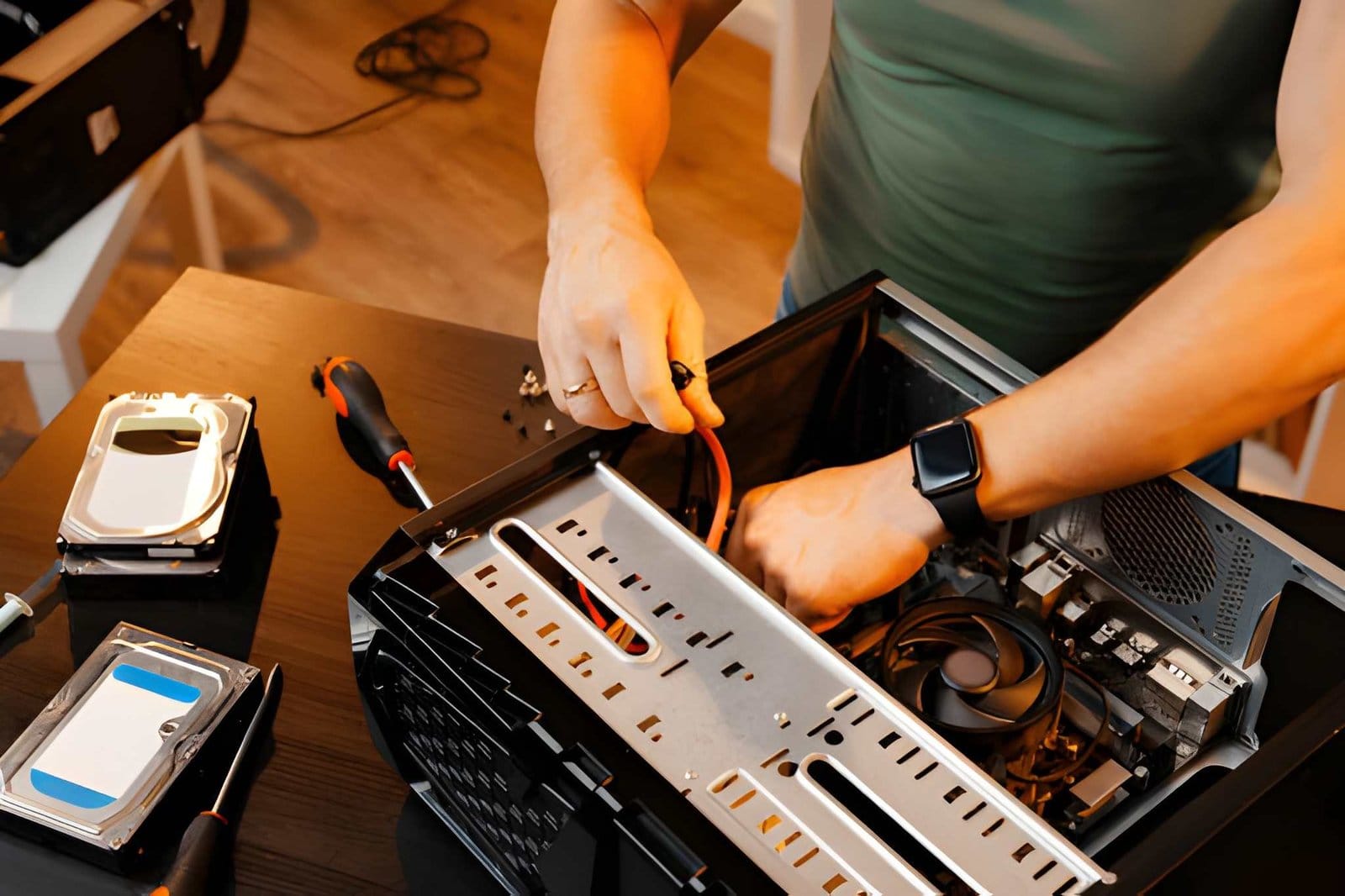
Why Computer Maintenance Matters
Your computer works hard every day. Over time, files accumulate, software becomes outdated, and hardware collects dust.
Without maintenance, you may notice:
- Slow startup times
- Frequent crashes
- Overheating
- Virus infections
- Lost files
- Reduced battery life
- Loud cooling fans
Routine maintenance prevents these issues and keeps your system running efficiently.
1. Install Windows Updates Regularly
Microsoft releases updates to improve security and fix software bugs.
Make sure you:
- Enable automatic updates.
- Restart your computer after updates.
- Install optional driver updates when necessary.
- Keep Windows security patches current.
Updated systems are safer and more stable.
2. Update Your Software
Don’t forget applications.
Keep programs like:
- Web browsers
- Microsoft Office
- Adobe software
- Antivirus software
- Video conferencing apps up to date.
Updated software fixes vulnerabilities and improves performance.
3. Remove Unnecessary Programs
Unused software consumes storage and may slow your computer.
Every few months:
- Review installed applications.
- Remove programs you no longer use.
- Uninstall old games.
- Delete outdated utilities.
A cleaner computer performs better.
4. Clean Temporary Files
Temporary files build up every day.
Use:
- Windows Disk Cleanup
- Storage Sense
- Temporary file cleaner
This frees storage space and improves speed.
5. Scan for Viruses and Malware
Cyber threats continue to evolve.
Run:
- Weekly antivirus scans
- Monthly full system scans
- Real-time protection
Avoid downloading files from unknown websites.
Safe browsing habits are equally important.
6. Back Up Important Files
Never rely on a single hard drive.
Create backups using:
- External hard drives
- Cloud storage
- Network storage devices
Important files include:
- Photos
- Business documents
- Tax records
- School projects
Backups provide peace of mind if hardware fails.
7. Keep Your Hard Drive Healthy
Traditional hard drives wear out over time.
Signs of failure include:
- Clicking noises
- Slow loading
- Missing files
- Frequent freezing
Monitor drive health regularly.
If you notice warning signs, seek Computer Repair Edmonton services before complete failure occurs.
8. Check Available Storage
Computers slow down when storage becomes nearly full.
Aim to keep:
- At least 20% free storage space.
Delete:
- Duplicate files
- Large downloads
- Old videos
- Recycle Bin contents
Extra space improves system responsiveness.
9. Clean Dust from Your Computer
Dust blocks airflow.
Poor airflow causes:
- Overheating
- Loud fans
- Reduced performance
- Hardware damage
Clean:
- Air vents
- Cooling fans
- Keyboard
- Monitor
- Power supply vents
Use compressed air for safe cleaning.
10. Monitor Computer Temperature
Overheating shortens hardware lifespan.
Common causes include:
- Dust buildup
- Failing fans
- Poor ventilation
- Heavy workloads
Place your computer in a well-ventilated area.
Avoid blocking air vents.
11. Optimize Startup Programs
Too many startup applications increase boot time.
Disable unnecessary startup items through Task Manager.
Keep only essential software loading automatically.
Your computer will start much faster.
12. Test Your Internet Connection
Sometimes the computer isn’t slow, the network is.
Check:
- Wi-Fi signal strength
- Router firmware
- Ethernet cables
- Internet speed
A healthy network improves online performance.
13. Protect Your Passwords
Strong passwords protect your information.
Best practices include:
- Use unique passwords.
- Enable two-factor authentication.
- Store passwords securely.
- Avoid sharing login credentials.
Security starts with good password habits.
14. Inspect Laptop Battery Health
Laptop batteries naturally wear out.
Warning signs include:
- Short battery life
- Unexpected shutdowns
- Battery swelling
- Charging issues
Replacing a worn battery restores portability.
15. Schedule Professional Computer Maintenance
Some issues require expert attention.
Professional technicians can:
- Diagnose hidden hardware problems
- Replace failing components
- Upgrade RAM or SSDs
- Remove advanced malware
- Improve overall performance
Routine inspections often prevent expensive repairs later.
At Akal IT Services, experienced technicians help Edmonton residents keep desktops and laptops running smoothly with reliable maintenance and repair solutions.
Bonus Maintenance Tips
Follow these habits every day:
- Shut down your computer properly.
- Keep food and drinks away.
- Use a surge protector.
- Restart your PC regularly.
- Organize important files.
- Avoid installing unnecessary software.
- Keep your desktop uncluttered.
Small habits make a big difference.
When Should You Contact a Professional?
Contact a technician if your computer experiences:
- Blue screen errors
- Frequent freezing
- Water damage
- Broken laptop screens
- Hard drive failure
- Data loss
- Loud grinding noises
- Power issues
Ignoring these symptoms may result in more expensive repairs.
Professional Computer Repair Edmonton services can diagnose problems early and help protect your valuable data.
Regular maintenance is one of the easiest ways to extend the life of your computer. Simple tasks such as updating software, cleaning dust, backing up files, and scanning for malware can prevent many common issues before they become costly repairs.
If your computer is already running slowly or showing signs of hardware failure, professional assistance can save both time and money. Akal IT Services provides dependable Computer Repair Edmonton solutions for home users and businesses, helping keep computers secure, efficient, and ready for everyday use.
By following this ultimate maintenance checklist, Edmonton residents can enjoy better performance, improved security, and a longer-lasting computer.
Frequently Asked Questions
How often should I maintain my computer?
Basic maintenance should be performed every month, while deep cleaning and hardware inspections are recommended every three to six months.
Does regular maintenance improve computer speed?
Yes. Removing unnecessary files, updating software, and optimizing startup programs can noticeably improve performance.
Is professional computer maintenance worth it?
Yes. Professional maintenance can detect hidden hardware issues, remove advanced malware, and prevent costly repairs.
What is the most important maintenance task?
Backing up your data regularly is one of the most important tasks because it protects your files from hardware failure, malware, or accidental deletion.
How do I know if my computer needs repair?
If your computer frequently crashes, overheats, makes unusual noises, or becomes unusually slow, it’s time to have it inspected by a professional technician.