Computer Blue Screen Repair in Edmonton: Causes, Fixes and Expert Help
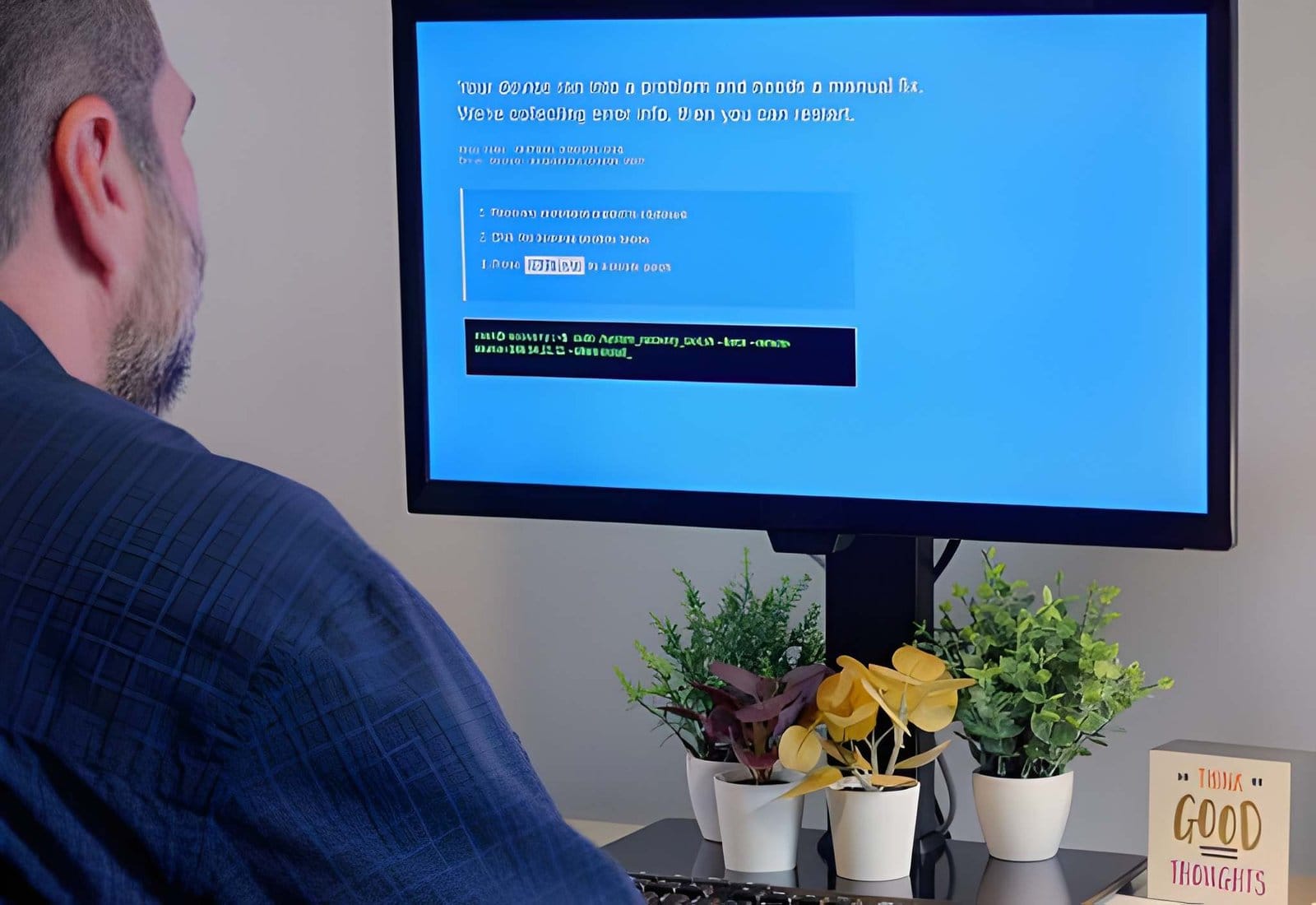
Computer Blue Screen Repair in Edmonton can help when your Windows computer suddenly crashes, restarts unexpectedly, or displays a blue screen with an error message. These problems can interrupt work, online classes, gaming, and important daily tasks. Understanding the possible causes can help you identify the right solution and avoid further computer problems.
A blue screen error, also known as the Blue Screen of Death (BSOD), occurs when Windows encounters a serious problem that prevents it from operating safely. The cause may be a faulty driver, damaged system files, overheating, memory problems, or incompatible hardware. Identifying the underlying issue is the first step toward restoring your computer’s stability.
What Causes a Computer Blue Screen Error?
Several hardware and software issues can trigger a blue screen. Identifying when the error occurs and recording the displayed stop code can help narrow down the cause.
1. Outdated or Faulty Drivers
Device drivers allow Windows to communicate with components such as graphics cards, network adapters, and storage devices. Outdated, corrupted, or incompatible drivers can cause system crashes.
If blue screens started after a driver update, consider rolling back that driver. Otherwise, download compatible drivers from the computer manufacturer’s official website.
2. Corrupted Windows System Files
Damaged system files may prevent Windows from operating correctly. This can happen following an interrupted update, unexpected shutdown, or software problem.
Windows includes built-in tools that can scan for and repair certain system file errors. Running these tools may help resolve crashes caused by corrupted files.
3. Faulty RAM or Hardware
Defective memory, storage devices, or other hardware components can cause repeated blue screen errors. You may also notice freezing, unexpected restarts, or unusually slow performance.
Windows Memory Diagnostic can help identify some memory problems. If the crashes continue, professional hardware testing may be necessary.
4. Overheating and Power Problems
Excessive heat, blocked ventilation, cooling fan problems, or unstable power can contribute to computer instability. Dust buildup may restrict airflow and affect cooling performance.
Keep ventilation openings clear and avoid using a laptop on soft surfaces that block airflow. If the computer becomes unusually hot or shuts down repeatedly, arrange an inspection.
5. Malware or Incompatible Software
Malicious software and incompatible applications can sometimes interfere with Windows processes. Recently installed programs or security software may also contribute to system conflicts.
Run a trusted security scan and review recently installed applications. Avoid downloading unknown driver-updater programs or unofficial system repair utilities.
How to Fix a Blue Screen Error in Windows
Before seeking professional assistance, you can try several basic troubleshooting steps. Back up important files whenever possible, and avoid repeatedly forcing shutdowns if you suspect a storage problem.
Step 1: Record the Error Code
Write down the stop code displayed on the blue screen, such as MEMORY_MANAGEMENT or CRITICAL_PROCESS_DIED. Note what you were doing when the crash occurred.
This information can help identify whether the problem relates to memory, system files, drivers, or another component.
Step 2: Disconnect External Devices
Shut down the computer and disconnect unnecessary USB devices, external drives, and other recently connected accessories. Restart the computer to see whether the error returns.
If the blue screen disappears, reconnect devices individually to help identify a possible cause.
Step 3: Install Appropriate Windows Updates
If Windows starts normally, check for available Windows updates and compatible driver updates. Install updates from trusted official sources.
If the blue screen began immediately after a particular update, investigate whether rolling back that update is appropriate. Avoid making multiple changes simultaneously, as this can make troubleshooting more difficult.
Step 4: Scan Windows System Files
Open Command Prompt or Terminal as an administrator and run the following command:
sfc /scannow
Allow the scan to finish and follow any repair instructions. If Windows reports that system files could not be repaired, additional troubleshooting may be needed.
Step 5: Use Windows Recovery Options
If Windows cannot start normally, Windows Recovery Environment may provide options such as Startup Repair, System Restore, or Safe Mode, depending on your configuration.
Use these options carefully. Before attempting resets, reinstallations, or other major repairs, protect important files where possible.
When Should You Seek Professional Computer Repair?
Basic troubleshooting may resolve occasional software-related crashes. However, repeated blue screens can indicate a deeper problem that requires more detailed diagnosis.
Consider professional computer repair if:
Your PC crashes repeatedly, even after restarting.
Windows cannot boot to the desktop.
Blue screens appear during gaming or demanding tasks.
You notice unusual noises, overheating, or storage errors.
Important files are inaccessible or the computer freezes frequently.
The problem started after a hardware upgrade or Windows installation.
Professional diagnostics can help determine whether the issue involves RAM, storage, drivers, Windows configuration, cooling, or another component. Accurate diagnosis is preferable to replacing hardware without confirming the cause.
Computer Blue Screen Repair in Edmonton for Home and Business Users
A computer that crashes repeatedly can interrupt important activities. Home users may lose access to personal files, while students and professionals may struggle to complete assignments or work. Small businesses can also experience downtime when essential computers become unreliable.
Computer Blue Screen Repair in Edmonton should begin with identifying the cause rather than applying a generic fix. Depending on the findings, the solution may involve driver troubleshooting, system file repair, hardware testing, cooling improvements, or Windows recovery.
Akal IT Services provides computer and IT support for home users and businesses in Edmonton. If your computer continues to display blue screen errors, contact Akal IT Services to discuss the symptoms and available repair options.
Frequently Asked Questions
1. What is the main cause of a computer blue screen?
Common causes include faulty drivers, corrupted Windows files, defective RAM, storage problems, overheating, and incompatible software. The exact cause depends on the error code and the computer’s symptoms.
2. Can I fix a blue screen error without replacing my computer?
Yes. Many blue screen errors can be resolved through driver updates, system file repairs, software troubleshooting, or recovery tools. Hardware replacement is only necessary when testing identifies a faulty component.
3. Why does my PC show a blue screen while gaming?
Gaming can increase processor and graphics card workloads. Driver conflicts, overheating, unstable hardware, or power-related problems may cause crashes under heavy loads.
4. Can a blue screen cause data loss?
A blue screen does not automatically mean your files are lost. However, unsaved work may disappear, and an underlying storage problem could put data at risk. Back up important files whenever possible.
5. Where can I get computer blue screen repair in Edmonton?
Akal IT Services offers computer and IT support in Edmonton. Contact the business to discuss your blue screen symptoms and determine suitable troubleshooting or repair options.
Computer Blue Screen Repair in Edmonton starts with identifying why Windows is crashing. Faulty drivers, damaged system files, overheating, memory problems, and incompatible software are all possible causes. Simple troubleshooting may resolve some errors, but recurring crashes require careful diagnosis.
If your desktop or laptop continues to display the Blue Screen of Death, avoid unnecessary system changes and protect important data. Contact Akal IT Services to discuss your computer problem and explore appropriate repair options.