How to Clean Your Computer Without Damaging It
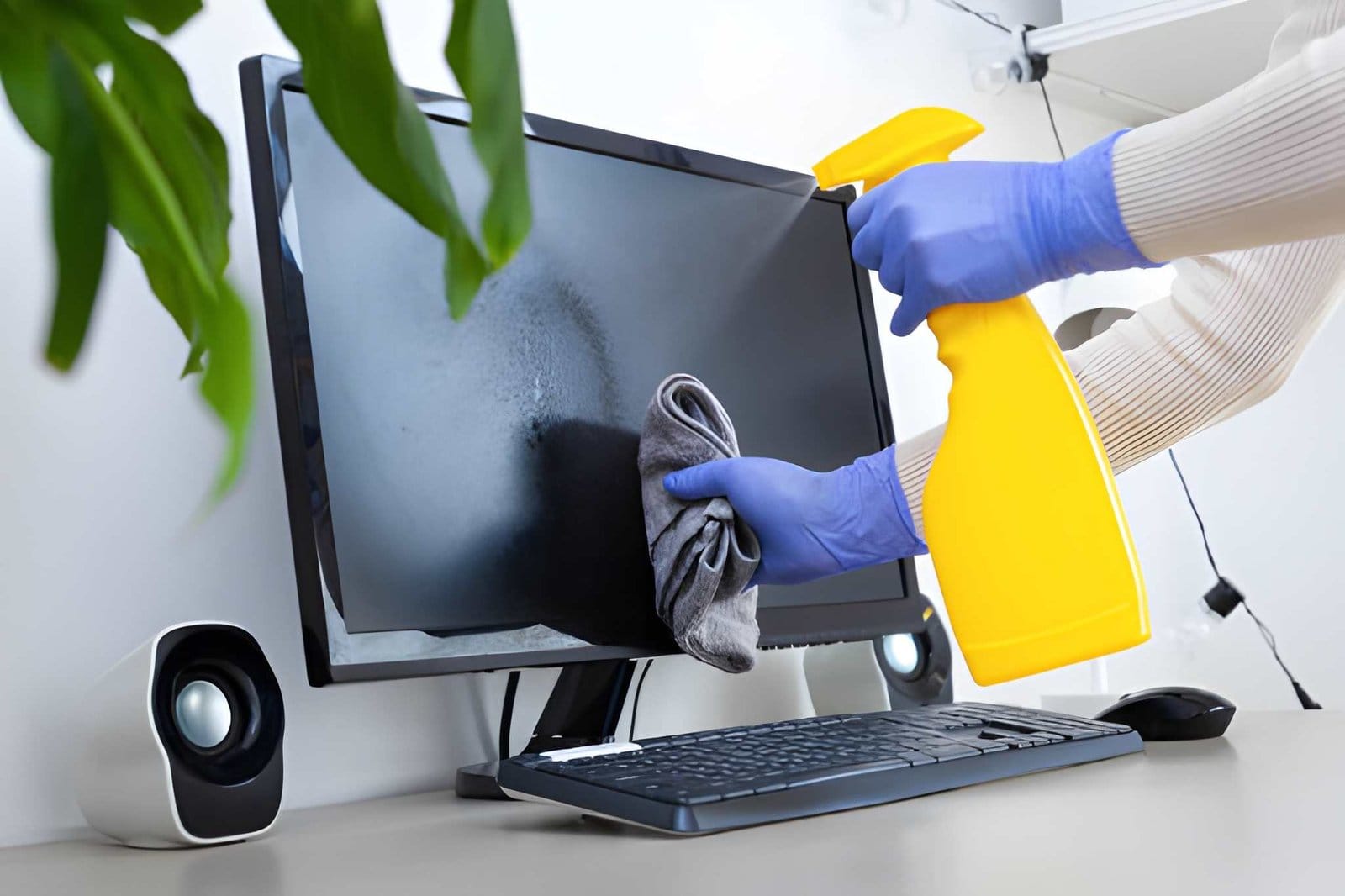
Dust and dirt can build up inside your computer over time. This buildup can block airflow, increase temperatures, and affect performance. Regular computer cleaning is an important part of maintaining a healthy and reliable PC.
However, cleaning a computer requires care. Using too much liquid, applying excessive pressure, or using the wrong tools can damage sensitive components.
The good news is that you can safely clean most computers by following a few simple steps. In this guide, we’ll explain how to clean your computer without damaging it and how regular maintenance can help extend its lifespan.
Why Is Computer Cleaning Important?
Your computer uses fans and air vents to control internal temperatures. Over time, dust can collect around these areas.
Excessive dust may contribute to:
- Higher operating temperatures
- Noisy fans
- Reduced performance
- Unexpected shutdowns
- Overheating
- Shorter component lifespan
Regular PC cleaning helps maintain proper airflow and can reduce the risk of overheating.
1. Turn Off and Unplug Your Computer
Safety should always come first.
Before cleaning your computer:
- Shut down the computer completely.
- Disconnect the power cable.
- Unplug connected accessories.
- Remove external devices.
- Allow the computer to cool down.
Never clean internal components while the computer is powered on.
If you’re cleaning a laptop, disconnect its charger. If the battery is removable, remove it before performing internal cleaning.
2. Use the Right Cleaning Tools
Using appropriate tools makes computer maintenance safer.
Useful items include:
- Microfiber cloth
- Compressed air
- Soft anti-static brush
- Small screwdriver
- Cleaning wipes suitable for electronics
Avoid using rough cloths or household cleaning products that are not designed for electronics.
You don’t need expensive equipment to perform basic computer maintenance. The right tools and careful handling are more important.
3. Clean the Outside First
Start with the external surfaces.
Use a dry or slightly damp microfiber cloth to clean:
- Computer case
- Laptop lid
- Monitor frame
- Keyboard
- Mouse
- Other external surfaces
Never spray cleaning liquid directly onto the computer.
Instead, apply a small amount to the cloth if the product is suitable for the surface. Keep moisture away from openings, ports, and ventilation areas.
4. Clean the Keyboard Carefully
Keyboards collect dust, hair, crumbs, and other debris.
To clean a keyboard safely:
- Turn off the computer.
- Disconnect the keyboard if it is external.
- Turn it upside down carefully.
- Gently shake out loose debris.
- Use short bursts of compressed air.
- Wipe the keys with a microfiber cloth.
Avoid forcing liquid between the keys.
For laptop keyboards, extra care is important because the keyboard is connected directly to the internal hardware.
5. Clean the Computer Vents
Air vents are essential for cooling.
Dust can block these openings and restrict airflow.
Use compressed air to remove loose dust from:
- Intake vents
- Exhaust vents
- Fan openings
- Laptop cooling vents
Use short bursts rather than continuously spraying one area.
Keep the can upright and follow the manufacturer’s instructions.
6. Clean Desktop PC Fans Carefully
Desktop computer fans can accumulate significant amounts of dust.
If you’re comfortable opening the case, disconnect the power first and carefully access the internal components.
When cleaning a fan, prevent the fan blades from spinning freely while using compressed air. Excessive spinning can potentially stress the fan.
Use short bursts to remove dust from:
- Case fans
- CPU cooling fans
- Graphics card fans
- Power supply exterior vents
If you are unsure about opening the case, professional Computer Repair Edmonton services can perform internal cleaning and maintenance safely.
7. Never Spray Liquid Inside Your Computer
This is one of the most important cleaning rules.
Never spray water or cleaning products directly onto:
- Motherboards
- Graphics cards
- RAM
- Power supplies
- Storage drives
- Laptop interiors
Liquid can cause electrical damage and corrosion.
For most internal computer cleaning, dry methods such as compressed air and an appropriate anti-static brush are safer.
8. Clean Your Monitor Safely
Your monitor needs careful cleaning because some screens have sensitive coatings.
First, turn off the display.
Use a clean microfiber cloth to gently remove dust and fingerprints.
Avoid:
- Paper towels
- Abrasive materials
- Excessive pressure
- Spraying liquid directly onto the screen
If you use a screen-cleaning product, make sure it is specifically suitable for your display type.
9. Clean Around Ports and Connections
USB ports, HDMI ports, audio ports, and other connections can collect dust.
Use gentle compressed air to remove loose debris.
Do not insert sharp objects into ports.
Avoid using excessive force because internal connectors can be damaged.
If a port is loose, damaged, or not working, cleaning may not solve the problem. It may require professional repair.
10. Don’t Forget the Area Around Your Computer
Computer maintenance isn’t limited to the computer itself.
Keep the area around your PC clean and well ventilated.
Avoid placing your computer:
- On thick carpets
- Against walls that block vents
- Near dusty areas
- In direct sources of excessive heat
For desktop PCs, leave enough space around ventilation openings for air to circulate.
For laptops, use a hard, flat surface whenever possible.
How Often Should You Clean Your Computer?
Cleaning frequency depends on your environment and computer usage.
A basic schedule could include:
Weekly:
Wipe external surfaces and remove visible dust.
Monthly:
Clean the keyboard, vents, monitor, and surrounding area.
Every few months:
Inspect desktop fans and internal dust buildup.
If you have pets, smoke indoors, or live in a particularly dusty environment, your computer may require more frequent cleaning.
Signs Your Computer Needs Cleaning
Your computer may need maintenance if you notice:
- Loud fans
- Increased heat
- Frequent overheating
- Sudden shutdowns
- Reduced performance
- Dust around vents
- Fans running constantly
However, these symptoms can also indicate hardware or software problems.
If cleaning doesn’t resolve the issue, professional diagnostics may be necessary.
Common Computer Cleaning Mistakes to Avoid
Knowing what not to do is just as important as knowing how to clean your computer.
Avoid these common mistakes:
Don’t Use a Household Vacuum Directly on Components
Traditional vacuums can create static electricity and may not be ideal for delicate electronics.
Don’t Use Excessive Pressure
Computer components are sensitive. Handle them gently.
Don’t Spray Liquid Inside
Moisture and electronics are a dangerous combination.
Don’t Force Components
Never force cables, RAM, graphics cards, or other hardware into place.
Don’t Clean While the PC Is Running
Always shut down and disconnect power before internal cleaning.
When Should You Hire a Professional?
Basic external cleaning is easy for most users. Internal cleaning can be more complicated, especially with laptops and gaming computers.
Consider professional Computer Repair Services Edmonton if:
- Your computer is overheating.
- Fans are unusually loud.
- You cannot safely access the internal components.
- Your laptop requires internal cleaning.
- The computer shuts down unexpectedly.
- You suspect a damaged cooling system.
- Your PC continues to run hot after cleaning.
Professional technicians can inspect the cooling system and identify problems that simple cleaning may not solve.
How Cleaning Can Extend Your Computer’s Life
Regular maintenance helps your computer operate in a cleaner environment.
Keeping dust under control can help:
- Maintain airflow
- Reduce heat buildup
- Keep fans working efficiently
- Improve system reliability
- Reduce unnecessary stress on components
Cleaning isn’t a substitute for replacing failing hardware, but it is an important part of overall PC maintenance.
Why Choose Professional Computer Maintenance?
A professional technician can do more than remove dust.
A complete maintenance service may include:
- Internal dust removal
- Fan inspection
- Temperature checks
- Hardware diagnostics
- Software updates
- Performance optimization
- Malware checks
- Storage health checks
This can help identify potential problems before they result in unexpected downtime.
Why Choose Akal IT Services?
Akal IT Services provides professional computer repair and IT support for Edmonton homes and businesses.
If your PC is overheating, running slowly, making unusual fan noises, or showing other performance problems, professional diagnostics can determine whether dust buildup is the cause or whether another hardware issue is involved.
Professional computer maintenance can help keep your system clean, reliable, and ready for everyday work, school, gaming, and business tasks.
Learning how to clean your computer without damaging it can help you maintain better performance and reduce overheating risks. The key is to use the right tools, avoid excessive pressure, keep liquids away from internal components, and always disconnect power before cleaning.
Regular cleaning should be combined with software updates, security protection, backups, and proper ventilation.
If your computer continues to overheat or perform poorly after cleaning, don’t keep taking it apart. A professional technician can diagnose the problem and determine whether your system needs deeper maintenance or a hardware repair.
With proper care and regular computer maintenance, your PC can remain reliable and perform well for many years.
For most users, basic ex